Set up MyCCU
Connect MyCCU to your CCU3 or OpenCCU in a few steps. You need the hub, the XML API add-on, an XML API token and a smartphone on your home network or connected by VPN.
Important: Never publish XML API tokens, private IP addresses, passwords or VPN credentials.
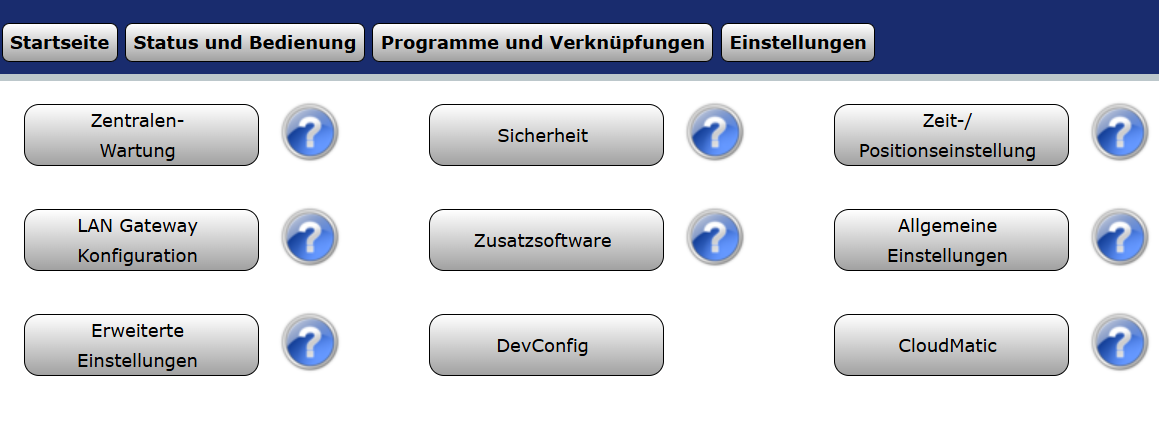
Open the CCU WebUI
In the CCU WebUI, open Settings → Control panel → Additional software.
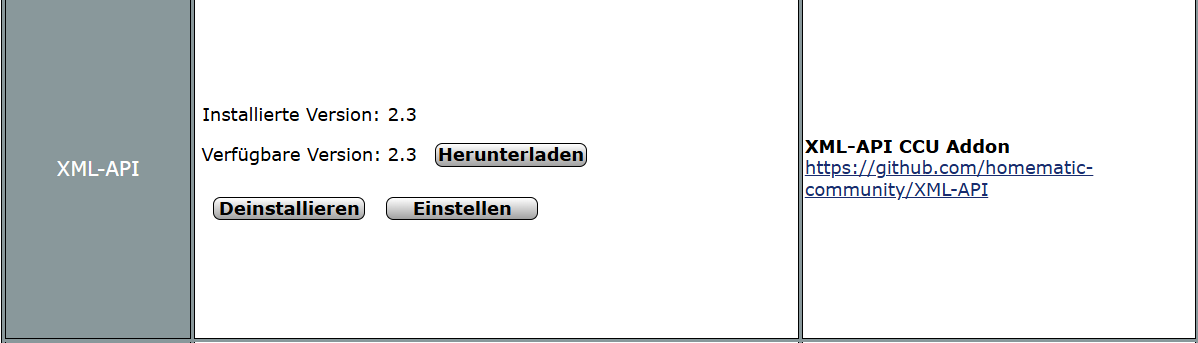
Check the XML API add-on
Make sure the XML-API CCU Addon is installed. Install it first if it is missing and restart the CCU if required.
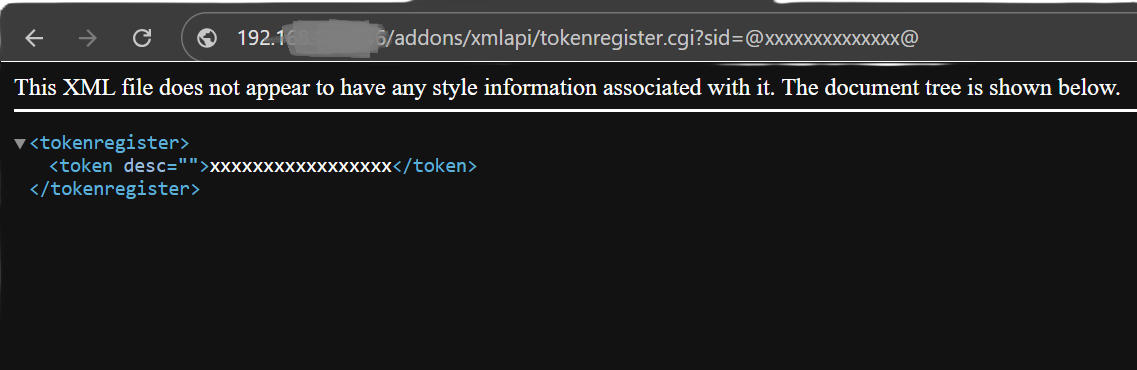
Open the XML API
The XML API is available through your CCU address, for example:
http://192.168.1.20/addons/xmlapi/Enter the actual IP address or hostname of your own CCU in MyCCU.
Create an XML API token
MyCCU stores the token locally and displays it in masked form. Never share it publicly.
Configure MyCCU
Under More → Settings, enter the CCU address, XML API token and, if required, your favourite group. Then select Save and load.
Test the connection
Under More → Diagnostics, test the connection and check favourites, rooms and programs.
Load data
MyCCU reads the available favourites, rooms, devices and programs from the XML API. Visible tiles depend on your CCU configuration.
Start using MyCCU
Open favourites or rooms and check the displayed values. Diagnostics can help if the connection fails.
Help directly in MyCCU
Under More → Help, you will find a quick guide for the first steps. The following app view comes from an older test version; the current interface may differ.
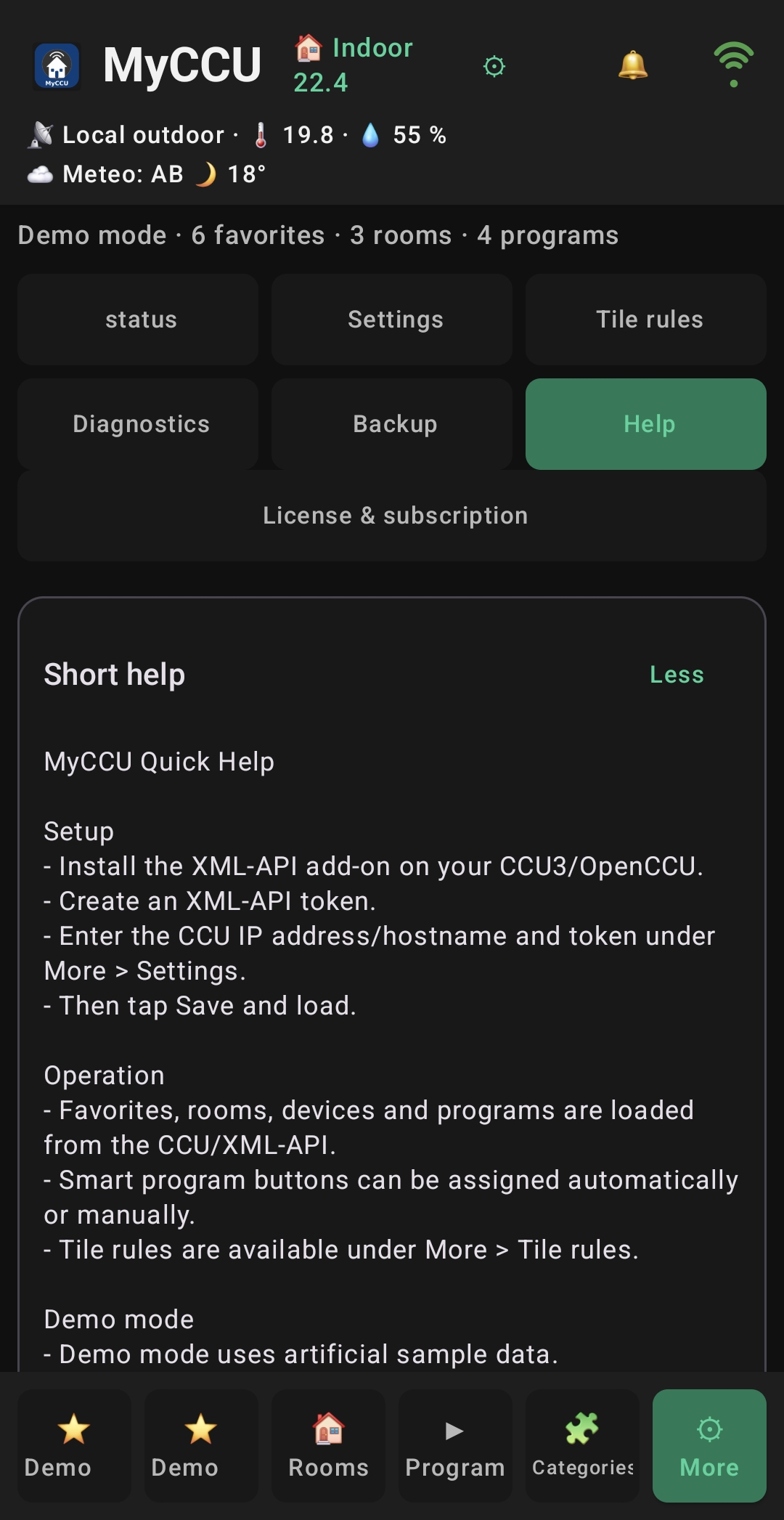
Demo mode
Demo mode uses fictional sample data, needs no CCU or XML API token and never sends commands to real devices.
Common connection problems
- Check that the CCU is running.
- Check the IP address or hostname.
- Make sure the phone is on the local network or connected by VPN.
- Check the XML API add-on and token.